
Connected procurement and inventory
Requests, orders, receipts and stock in one chain.
Project cost visibility
Budget, committed and actual by cost code.
Approval and audit trails
Amount-based routing and a history on every document.
Philippine construction workflows
PHP, Manila time, retention and advance terms.
Modules
Everything a project needs to buy, receive and account for material
Each module posts to the same ledgers, so what the site team records is what the finance team sees.
- AvailableView in the demo: Procurement
Procurement
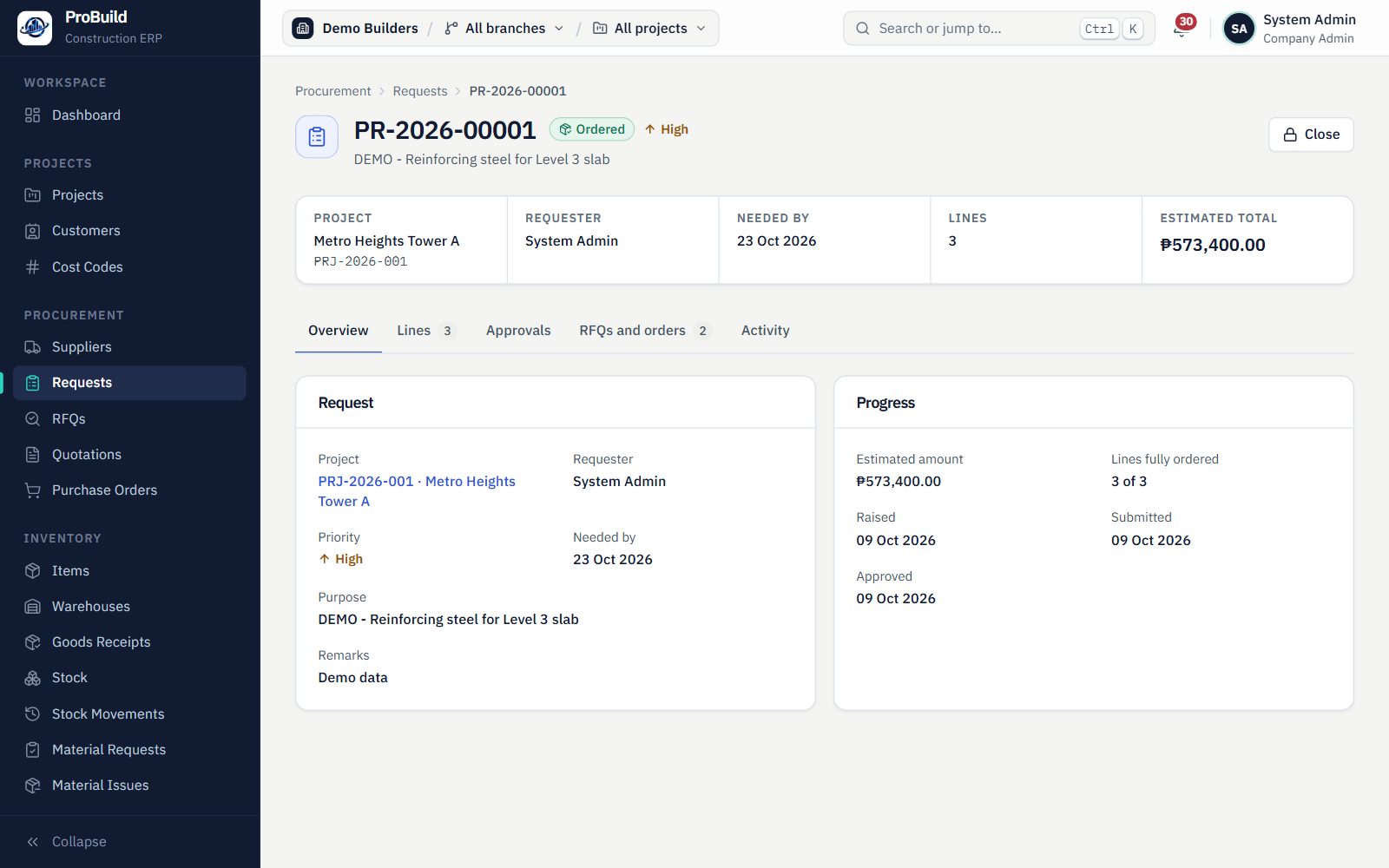
Purchase requisitions with WBS, cost code and BOQ on every line, RFQs to several suppliers, a side-by-side quotation comparison, and purchase orders built from the award.
- Requisitions and approvals
- RFQs and quotation comparison
- Purchase orders with amount-band routing
- AvailableView in the demo: Projects, WBS and BOQ
Projects, WBS and BOQ
Contracts, work breakdown, estimates and an approved budget that every purchase is measured against.
- AvailableView in the demo: Receiving and QC
Receiving and QC
Partial deliveries, per-line inspection with accept, reject or quarantine, and a stop on over-receipt.
- AvailableView in the demo: Inventory and material control
Inventory and material control
Stock by warehouse and status, material requests and issues, all on an append-only stock ledger.
- AvailableView in the demo: Approvals and audit
Approvals and audit
Configurable approval workflows by document and amount, an approvals inbox, and an activity history on every record.
- Partly availableView in the demo: Accounting foundation
Accounting foundation
Open and closed accounting periods, so nothing posts into a closed month.
Chart of accounts, journals and trial balance are built into the system; their screens are in progress.
On the roadmap
Planned, not yet available
- Accounts payable
- Billing and retention
- Payroll
- Equipment
- Subcontractors
Procure to cost
From a site request to a cost on the project
Eight connected stages. Each one is approved where it needs to be, recorded in the audit history, and tied to the WBS, cost code and BOQ line it belongs to.
- Buy
- Receive
- Store and use
- Cost
- 01
Buy
Purchase requisition
WBS, cost code and BOQ line on every request
- 02
Buy
RFQ and supplier comparison
Quotations side by side, award with a reason
- 03
Buy
Purchase order
Built from the award, approved by amount band
- 04
Receive
Goods receipt
Partial deliveries against the order
- 05
Receive
Quality control
Accept, reject or quarantine each line
- 06
Store and use
Stock
Append-only ledger, weighted-average cost
- 07
Store and use
Material issue
Against an approved material request
- 08
Cost
Project cost
Issues net of returns, by cost code
Every stage above has working screens today. Stock transfers, adjustments and counts are already recorded in the stock ledger; their own entry screens are in progress.
Why it matters
When purchasing, stock and project costs share one record
Material is a major share of cost on most construction projects. Disconnected purchase, warehouse and cost records make it hard to see where it went.
Trace materials from purchase to project use
Each document is created from the one before it: the order from the award, the receipt from the order, the issue from the material request. The trail stays connected.
Know the actual material cost of a project
Issued materials, net of returns, are charged to the project and cost code at the moment they leave the warehouse.
Track approvals and transaction history
Every approval step records who decided, when and why. Posted documents are never edited, only reversed.
See procurement and receiving status
Which requests are waiting, which orders are partly delivered, and which receipts are still in QC.
Fewer disconnected spreadsheets
Purchasing, warehouse and project teams work on the same records, so there is less to reconcile by hand.
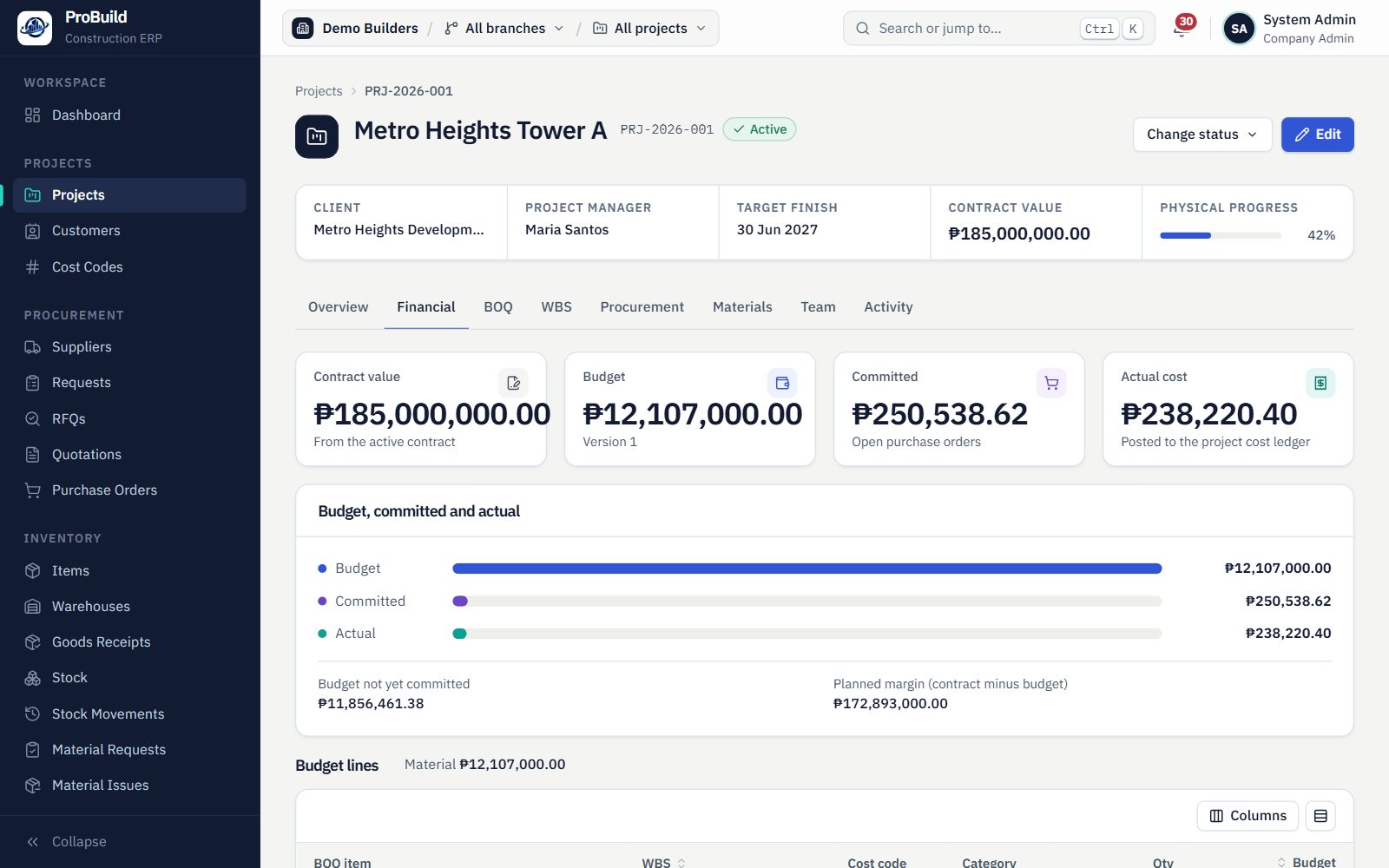
See the work, screen by screen
Real screens from the ProBuild demo environment, following one project from request to cost.
Live demo
Walk the whole procure-to-cost flow yourself
Use the shared demo administrator account to try ProBuild on sample data. No sign-up or sales call needed.
- 1Sign in with the account on this page.
- 2Open Procurement and raise a purchase request for a project.
- 3Approve it, award a supplier, and approve the purchase order.
- 4Receive the goods, run QC, then issue material to the project.
- 5Open the project Materials tab to see the material actual cost.